
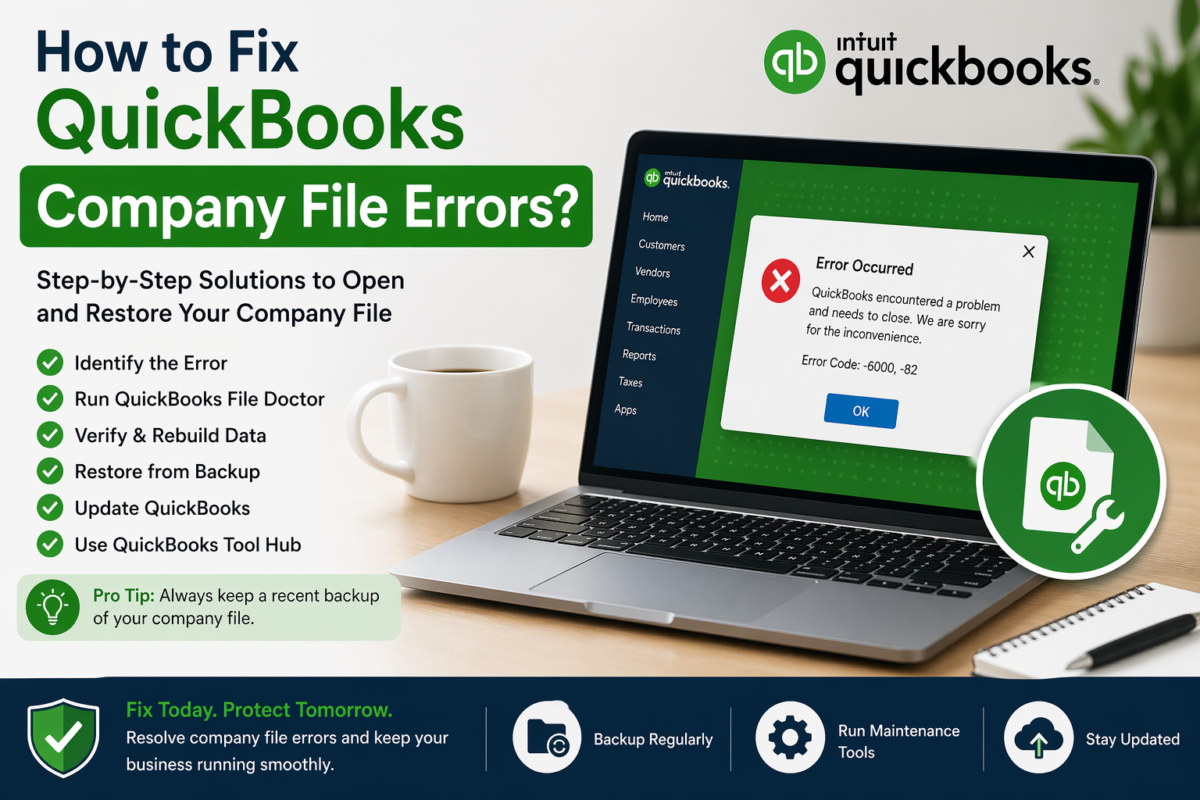
The QuickBooks errors such as -6000, -6123, -6073, or others that belong to the 6000 series are mostly related to company files. Running into any such QuickBooks company file errors can impact your organization’s accounting workflow. You may face such errors for several reasons. In this post, we’ll cover why such errors occur and how to fix them effectively.
Causes of Company File Errors
Some reasons behind such errors are:
- Network issues (multi‑user mode problems).
- Damaged or corrupted company file.
- Lack of required permissions on the company file folder.
- Firewall or antivirus blocking QuickBooks.
- Hosting settings misconfigured.
- Damaged transaction log file (.TLG).
- Firewall blocking QuickBooks application.
Methods to Resolve QuickBooks Company File Errors
First, try out these simple and quick troubleshooting fixes:
- Verify that your QuickBooks version is updated.
- Check the format and extension of the company file that you are trying to open. It should not be in compressed or encrypted form. The extension of the file should be .QBW.
- Ensure stable network connection.
- Confirm file location (workstation and server).
- Check and grant the required permissions. Ensure that the folder containing the company file has full read/write permissions.
If the above fixes didn’t help, follow the methods described below:
1 – Rename .ND and .TLG Files
Configuration files (Network Data and Transaction Log) are important to allow you access to the company file in multi-user mode. If any of these files get missing, corrupted, or damaged, QuickBooks cannot access the company file, leading to QBW-related errors. To resolve this, just rename them. This will recreate these files automatically. Follow the steps explained below:
- Go to the company file folder.
- Search for the .TLG file (it has the same name as your company file but with .TLG extension. For instance, company_file.qbw.tlg).
- Right-click on it and click Rename.
- Next, repeat the same steps to rename the .ND file.
Method 2 – Check the Hosting Settings on your System
You can experience company file error in your QuickBooks while working in multi-user mode. It can occur due to incorrect Hosting settings on either the server system or workstations. You can check the Hosting settings on both your server system and workstations. Make sure the Host Multi-user Access is enabled on the server system only.
Follow the steps below to check and turn on the hosting on the server system:
- On your server system, open QuickBooks and go to the File
- Click Utilities and then select Host Multi-User Access.
- On the Host Multi-User Access window, click Yes.
If the error persists, check the host settings on workstations by following the below steps:
- On a workstation, go to the File without opening the company file and then click Utilities.
- If you see the Stop Hosting Multi-User Access option, then enable it.
- Similarly, check and change the settings on all workstations.
Method 3 – Check and Configure Firewall
Your system’s firewall settings are also one of the causes for QuickBooks company file errors. To check if this is the case, you can check and reconfigure the Firewall settings to resolve the errors.
Method 4 – Repair or Restore your Company File
QuickBooks company file errors may occur if the file is corrupted or damaged. If you have a readable backup, you can repair your QuickBooks company file from it. If you’ve not created a backup file or it is also corrupted, then you can use the Verify and Rebuild Data tool to rebuild the company file data. It is an inbuilt tool in QuickBooks to help you repair QBW file with minor corruption issues. If it fails, then you can use the QuickBooks File Doctor tool. Follow these steps:
- First, download and install the latest version of QuickBooks Tool Hub.
- In the QuickBooks Tool Hub, click Company File Issues.
- Select Run QuickBooks File Doctor.
- In the QuickBooks File Doctor wizard, choose the desired company file.
- The tool prompts you to enter the QuickBooks® Admin password. Enter the password and then select
- It may take some time, depending on the QBW file size.
- After the process is complete, open your company file.
What if the above Repair Tools Fail to Repair the QuickBooks Company File?
The above-mentioned native tools usually fail to repair the QBW file if it is highly corrupted or large-sized. In such a situation, you can take the help of a third-party QuickBooks repair tool, like Stellar Repair for QuickBooks. It helps you repair QuickBooks company files of any size, regardless of the level of damage. It can recover all the data from the corrupted QBW file and save it in a fresh QBW file. It also helps you recover the .QBB files and supports repairing of QBW files created in any QuickBooks edition.
Conclusion
You can face QuickBooks company errors due to various reasons, as mentioned in this post. The primary cause behind such errors is corruption in the QBW file. You can use the Verify and Rebuild Data utility and other repair utilities to repair the company file. However, they can fix minor corruption issues and may fail to bring the desired results. In such a case, you can use an advanced QuickBooks repair tool, such as Stellar Repair for QuickBooks. It can efficiently resolve the company file errors by fixing corruption in the file.